Learn FANUC Robot Programming Fundamentals Online
FANUC robots are programmed with the Teach Pendant (TP) language, KAREL, and RoboGuide for offline simulation. Before you wrestle with vendor-specific syntax, master the universal fundamentals — frames, the tool centre point, joint vs linear motion, I/O, pick-and-place, payload, and safety — hands-on in a free browser simulator. These concepts carry straight onto a FANUC teach pendant.
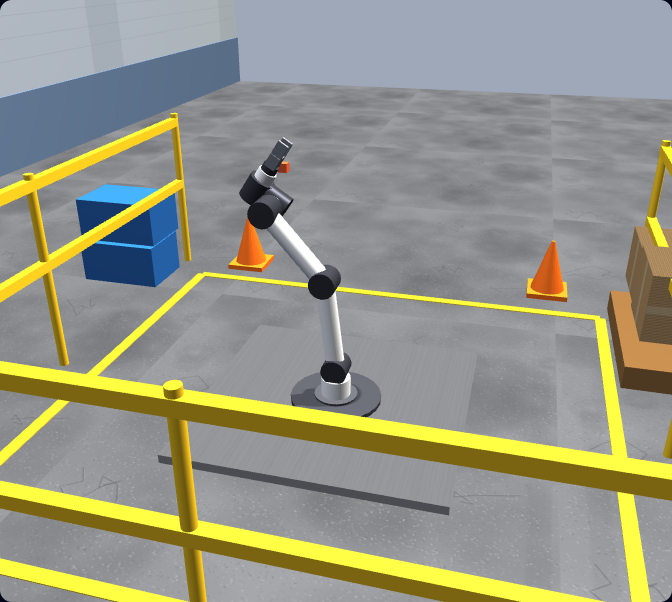
Honest note: this is not a FANUC emulator and it does not run FANUC TP or KAREL. It teaches the transferable robot-programming fundamentals using real URScript on a UR-style arm.
The FANUC stack
How FANUC robots are actually programmed
FANUC is one of the world’s largest industrial-robot manufacturers, and its programming workflow is built around a few core tools. Knowing what each one does — and what it expects you to already understand — tells you exactly where to start.
The Teach Pendant & TP language
Most FANUC programming happens on the teach pendant. FANUC’s modern pendant is the iPendant — a handheld touchscreen unit you use to jog the arm, record positions, and build programs. Programs are written in TP (Teach Pendant) language: an instruction list of motion moves (J for joint, L for linear), register operations, I/O instructions, and flow logic. This is the bread-and-butter of day-to-day FANUC work.
KAREL for advanced logic
For more complex tasks — data handling, custom routines, tighter integration — FANUC offers KAREL, a structured, Pascal-like programming language. KAREL runs alongside TP programs and is typically used by integrators and advanced programmers when teach-pendant instructions are not enough.
RoboGuide for offline programming
RoboGuide is FANUC’s official PC-based offline-programming and simulation suite. It builds a 3D model of your robot and cell so you can write, test, and optimise TP programs before touching the real machine. It is FANUC-specific and licensed — the standard tool for serious FANUC cell design.
CRX collaborative robots
FANUC’s CRX series are collaborative robots (cobots) designed to work safely near people. They can be programmed with simplified drag-and-drop and hand-guidance workflows in addition to traditional methods — but the same fundamentals of frames, motion, payload, and force-limited safety still apply.
Reading TP code
Anatomy of a FANUC TP motion instruction
Almost every line of FANUC teach-pendant motion follows the same template. Once you can read it, TP programs stop looking like a wall of codes. A typical instruction is:
J P[1] 100% FINEMotion type — J joint, L linear, or C circular. This is exactly the joint-vs-linear decision you practise here with movej and movel; FANUC adds a circular move (C) through an intermediate point.
Position — P[1] is a taught point. Reusable positions are stored in position registers (PR[1]), FANUC’s global position variables — the same idea as storing a pose/waypoint in a variable.
Speed — 100% (or 2000mm/sec for linear moves), the same velocity tuning you set per move in URScript.
Termination type — FINE stops exactly on the point; CNT (continuous, e.g. CNT50) rounds the corner for speed — conceptually identical to the blend radius you use to smooth waypoints in the simulator.
FANUC also uses registers (R[1]) for numeric data and counters, and I/O instructions (DO[1]=ON, RO[1]=ON) to drive grippers and signal a PLC — the equivalent of set_digital_out here.
What transfers
The fundamentals that carry onto a FANUC arm
FANUC’s TP language and RoboGuide are vendor-specific, but the concepts beneath them are not. Every six-axis articulated robot — FANUC, ABB, KUKA, Universal Robots — is driven by the same handful of ideas. Our browser simulator teaches each one hands-on using real URScript, so you build the mental model first and learn FANUC’s syntax second.
Frames & coordinate systems
World, base, user, and tool frames decide where the robot thinks it is. FANUC calls them user frames and tool frames; the idea is identical everywhere.
Tool Centre Point (TCP)
Define the working point of your gripper or tool so the robot moves the right spot to the right place. Get the TCP wrong and every position is off.
Joint vs linear motion
Joint moves (FANUC J / URScript movej) are fast through joint space; linear moves (FANUC L / movel) keep the tool on a straight Cartesian line. Knowing when to use each is core to every brand.
Waypoints & sequencing
Approach, act, retract: chaining points into a smooth, safe path is the same skill on any controller.
Digital I/O & grippers
Reading inputs and setting outputs to drive a gripper or signal a PLC is universal — only the instruction names change.
Payload, reach & collision safety
Configure payload, respect reach limits, and avoid collisions and over-force contact. On cobots like FANUC’s CRX this becomes force-limited collaborative safety.
Concept mapping
What you learn here vs what it’s called on FANUC
You program in real URScript in the simulator. Here is how each concept maps to the FANUC world so you can see the bridge clearly. The interface differs; the thinking is the same.
| Learned here (URScript / UR-style) | On a FANUC robot |
|---|---|
| movej — joint move | J motion instruction in TP language |
| movel — linear move | L motion instruction in TP language |
| Arc / circular path | C (circular) motion instruction through a via point |
| Tool centre point (set_tcp) | Tool frame (UTOOL) setup |
| Base / feature frames | User frame (UFRAME) setup |
| Stored pose / waypoint variable | Position register PR[n] (global position variable) |
| Counters & numeric variables | Register R[n] and register math instructions |
| Blend radius (smoothing waypoints) | CNT termination (e.g. CNT50); FINE stops exactly on point |
| Digital I/O (set_digital_out) | DO / RO output instructions |
| Payload configuration | PAYLOAD setting on the controller |
| Protective stop / force limits | DCS safety zones; CRX collaborative force limits |
Note: this mapping shows conceptual equivalence to help you transfer skills. The simulator does not generate or run FANUC TP or KAREL code — for that, you would use FANUC’s RoboGuide or a real teach pendant.
Where to start
FANUC-specific tools vs learning the fundamentals first
You can jump straight into FANUC’s ecosystem — but if you have never programmed a robot, the tools assume knowledge you do not have yet, and the licences and setup get in the way of practising. The faster path is to build the fundamentals where they are free and frictionless, then layer FANUC’s syntax on top.
Jumping straight to FANUC tools
RoboGuide is licensed Windows software; a real teach pendant means real (or rented) hardware. Both are powerful, but they assume you already understand frames, TCP, and motion types — so beginners spend their energy fighting the interface instead of learning to think like a robot programmer.
Fundamentals first, in the browser
Open a tab, write real URScript on a UR-style arm, and practise the exact concepts FANUC relies on — for free, with graded tasks. When you reach a FANUC pendant, you are learning new syntax, not a new way of thinking.
A practical roadmap to FANUC programming
- 1Build the fundamentals here: frames, TCP, joint vs linear motion, waypoints, I/O, payload, and collision/safety — graded, in the browser.
- 2Program a full pick-and-place cycle in URScript so the end-to-end workflow (approach, grasp, traverse, place, release) is second nature.
- 3Read up on FANUC TP language: how J/L instructions, registers, and I/O instructions are entered on the iPendant.
- 4Install FANUC RoboGuide (or use a real teach pendant) and re-create a simple pick-and-place — now you are only learning FANUC’s interface and syntax.
- 5Add KAREL and FANUC safety (DCS, CRX collaborative limits) once the basics are fluent.
Cobots & safety
FANUC CRX cobots and collaborative safety
FANUC’s CRX series are collaborative robots built to operate near people without the traditional safety cage. They support easier setup methods — including hand-guidance and a simplified drag-and-drop interface — alongside conventional programming. That lower barrier makes cobots a common entry point into robot programming.
But collaborative does not mean consequence-free. Whatever the brand, cobot safety comes down to force and speed limits, protective stops on unexpected contact, payload that is configured correctly, and a program that avoids collisions in the first place. Our simulator teaches exactly that: tasks are graded not just on placing the part, but on staying within a force limit and avoiding over-force contact — the same discipline a FANUC CRX (or any cobot) demands.
In the simulator
From first jog to a graded pick-and-place cell
You do not just watch — you write real URScript, run it on a simulated six-axis arm under physics, and get graded against a real goal. Every skill here is a fundamental FANUC programmers rely on too.
Jogging & frames
Move the arm in joint and Cartesian space; understand base vs tool frames and how the TCP is defined.
Joint vs linear moves
movej vs movel — when each is right, and how speed and acceleration change the motion (the FANUC J/L distinction).
Digital I/O & gripper
Read and set digital signals; open and close a gripper to actually pick something up.
Pick-and-place A→B
Approach, grasp, lift, traverse, place, release — the backbone of real robot and cobot work.
Payload & TCP
Configure payload and tool centre point and see how they change reach, accuracy, and safe speed.
Collision & force-limited safety
Trigger and avoid protective stops and over-force contact — the heart of collaborative safety.
Prove it
From fundamentals to a shareable certificate
The free track gets you fluent in the fundamentals. The full graded path takes you from your first jog to a working pick-and-place cell and a certificate you can show an employer — useful evidence when you are stepping toward a FANUC, ABB or KUKA role.
Keep exploring
More robot programming resources
- Robot programming course — the full graded path from first jog to a working pick-and-place cell.
- Universal Robots programming — learn URScript and the UR workflow our simulator is built around.
- Learn URScript — the actual language you write in our simulator; master it and the FANUC TP mapping above clicks into place.
- Robot programming languages compared — how FANUC TP/KAREL, ABB RAPID, KUKA KRL and URScript line up side by side.
- KUKA robot programming — how the same fundamentals map to KUKA’s KRL and smartPAD.
- ABB robot programming — the same fundamentals mapped to ABB RAPID, the FlexPendant and RobotStudio.
- Yaskawa robot programming — how the fundamentals map to Yaskawa Motoman’s INFORM language and the teach pendant.
- Doosan cobot programming — the same collaborative-safety fundamentals on Doosan cobots.
- Omron robot programming — how the fundamentals carry onto Omron’s robot and cobot range.
- Robot arm simulator — practise six-axis arm motion and kinematics in the browser.
- Robot simulator — the home of our browser-based robot programming trainer.
FANUC robot programming FAQ
Build the fundamentals FANUC programming relies on.
Write real robot code in your browser — frames, TCP, motion, I/O, pick-and-place, and safety. No install, no robot, free to start. Then take those skills to a FANUC teach pendant.