Program a robot in your browser — free
Write real URScript on a simulated UR-style six-axis arm — or program a SCARA — run pick-and-place with live physics, and learn frames, TCP, I/O, the gripper, and cobot safety with auto-graded lessons, from zero. No install, no robot, no vendor license. Play free in your browser; go Pro for the full course and a certificate.
What it is
A live, browser-based robot programming simulator
A robot programming simulator lets you write the code that drives an industrial robot arm and watch it run — without owning the robot, installing heavyweight offline-programming software, or risking a real machine while you are still learning. You program the motion, the simulator solves the kinematics and physics, and you see exactly what the arm would do. Ours is live now and runs entirely in a browser tab.
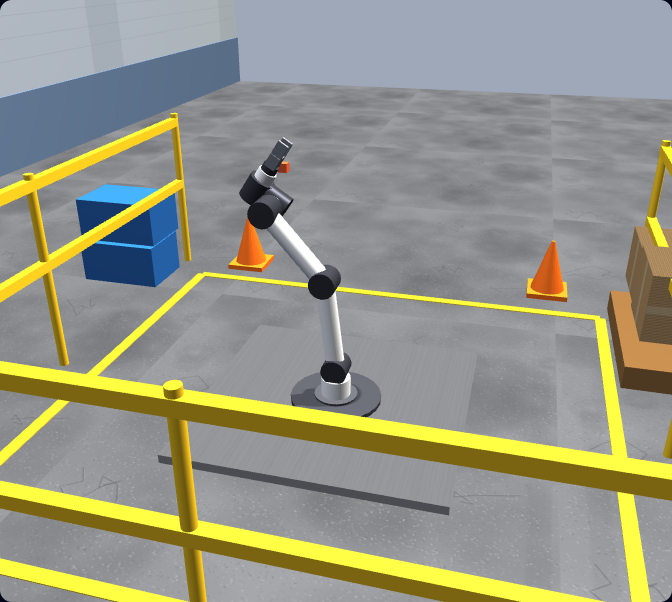
You program a UR-style six-axis arm using real URScript — the actual language you type into a Universal Robots controller. You write movej and movel moves, set digital outputs, open and close a gripper, and build a full pick-and-place cycle. There is also a 4-axis SCARA — the fast top-down arm used for high-speed pick-and-place and assembly. The URScript interpreter, the arm, the gripper, and the parts on the table all run together in a single browser tab, under physics. It is the same approach that made our PLC simulator work: practise the real skill, in the browser, free to start.
What it simulates
The robot geometries you actually meet on a line
Most browser “robot simulators” show a single articulated arm and stop there. The four configurations below cover the overwhelming majority of industrial automation you will program — and we model the kinematics of each so you feel how the same task changes when the geometry changes.
The six-axis arm and the SCARA are live and programmable now; the delta and Cartesian configurations are part of the wider curriculum so you understand the full landscape of industrial robot geometries, not just one.
How it works
Jog, write URScript, run, grade
Jog the arm
Move the arm in joint space and in Cartesian space to feel how it reaches, find your poses, and understand base vs tool frames and where the TCP sits — exactly as you would jog a real robot with a teach pendant.
Write real URScript
Type actual UR commands in the editor — movej, movel, movep, set_digital_out, gripper control, waypoints, variables, and loops. The interpreter understands the real language, not a simplified stand-in.
Run it under physics
The simulator solves the inverse kinematics for each target pose, plans a timed trajectory, and the arm tracks it under simulated dynamics. Grab a part and it follows the tool; a collision or an over-force contact is detected and surfaced.
Your program is graded
Each task defines success — part placed at B within tolerance, no collision, under the cycle-time budget, within the cobot force limit. Your program runs and is checked against those goals, with specific feedback on what to fix.
Real code
You write the same URScript a real UR runs
No drag-blocks-only toy and no invented pseudo-language. A first pick-and-place program in the simulator looks like this — and the exact same commands run on a physical Universal Robots controller:
# Pick a part at A, place it at B
set_tcp(p[0,0,0.15,0,0,0])        # tool centre point: 150 mm gripper
set_payload(0.8)                   # 0.8 kg part in the gripper

movej(home_q, a=1.4, v=1.0)        # joint move to a safe home pose
movel(pick_approach, a=1.2, v=0.3) # linear move above the pick
movel(pick, a=0.5, v=0.1)          # straight down onto the part
set_digital_out(0, True)           # close gripper
sleep(0.4)

movel(pick_approach, a=1.2, v=0.3) # lift straight up
movel(place, a=1.2, v=0.25)        # linear move to place B
set_digital_out(0, False)          # open gripper
movej(home_q, a=1.4, v=1.0)        # return home
The simulator parses this, solves the inverse kinematics for each target pose, plans the joint trajectory, and runs it under physics. movej moves fast through joint space; movel keeps the tool on a straight Cartesian line — the distinction every UR programmer has to learn, shown live.
What you’ll learn
From first jog to a graded pick-and-place cell
The course takes you from never having touched a robot to programming a working, collision-free pick-and-place cell — every lesson graded against a real goal.
Frames & TCP
Move the arm in joint space and in Cartesian space; understand base vs tool frames and how the tool centre point is defined.
movej vs movel
When each move type is right, how movep holds tool speed, and how acceleration and velocity change the motion.
I/O & gripper
Read and set digital signals; open and close a gripper to actually pick something up and put it down.
Pick-and-place A→B
The core skill: approach, grasp, lift, traverse, place, release — the backbone of real cobot work.
Waypoints & blends
Chain waypoints with blend radii for smooth, fast cycles instead of stop-start motion.
Payload & accuracy
Configure payload and TCP and see how they change reach, accuracy, and safe speed.
Protective-stop safety
Cobot protective stops: trigger and avoid over-force contacts; respect safety planes and speed limits.
SCARA programming
Program the 4-axis SCARA for fast top-down pick-and-place and assembly, and feel how it differs from the six-axis arm.
Skills that transfer
What transfers to a real Universal Robots arm
Because you program in real URScript, the skills are not throwaway. The language, the motion model, and the programming habits carry straight onto a physical UR controller and PolyScope — and the underlying articulated-arm concepts apply to other six-axis brands too.
movej takes a fast curved path through joint space; movel keeps the tool on a straight Cartesian line — the same decision every UR programmer makes.| Learned here | On a real UR / PolyScope |
|---|---|
| URScript movej / movel / movep | Identical commands in a Script node or .script program |
| TCP & payload configuration | Installation → TCP and payload setup, same parameters |
| Base vs tool frames / features | Feature planes and coordinate frames in PolyScope |
| Waypoints & blend radius | Waypoint nodes with blend in the program tree |
| Digital I/O & gripper control | set_digital_out and tool I/O on the real controller |
| Protective stop / force limits | Safety configuration and force-mode behaviour |
Pricing
Free to play, Pro to master
Start with the free lessons — write URScript and run the simulated arm in your browser at no cost, no card. Go Pro to unlock the full graded course end-to-end and earn a verifiable Robot Programming certificate of completion. Same login as our PLC simulator.
Keep exploring
More robot programming resources
- Robot programming course — the full graded curriculum, from first jog to capstone.
- Robot arm simulator — how the six-axis arm and kinematics work in the browser.
- Universal Robots simulator — the UR-focused view of the simulator and URSim comparison.
- Universal Robots programming — a deeper guide to programming UR cobots.
- Learn URScript — the language explained from scratch.
- Robot programming certificate — the verifiable certificate you earn on the Pro course.
- Robot programmer careers — what the job is and how to get into it.
Robot simulator FAQ
Program a robot in your browser.
No install. No robot. No vendor license. Real URScript on a UR-style arm and a SCARA — free to play, graded from zero.