Learn URScript Online Free — Write & Run It in Your Browser
URScript is Universal Robots’ text programming language — the same one the controller runs under PolyScope. This hub teaches it accurately, command by command: movej vs movel, movep, waypoints and blends, gripper I/O, set_tcp and set_payload. Then you write real URScript on a simulated UR arm. No robot. No install. No vendor license.
Start here
What is URScript?
URScript is the text-based programming language built into every Universal Robots controller — the UR3e, UR5e, UR10e, UR16e and the rest of the range all run it. The syntax is close to Python: you have variables, if / while logic, functions, and threads, plus built-in commands for motion, I/O, and tool configuration.
The key thing to understand is that PolyScope generates URScript under the hood. When you build a graphical program tree on the teach pendant, the controller compiles it down to URScript commands. You can also write URScript directly — inside a Script node in a PolyScope program, sent over a socket from a PC, or as a complete .script file. Either way, learning URScript is what makes you fluent, because it is the language the robot actually executes.
URScript syllabus
A structured path through URScript
You can program a working UR cell with a small core of URScript. This is the order that works — each topic builds on the last, from your first move to a complete, safe program.
1 · Motion: movej, movel, movep
The three move commands are the heart of URScript. movej interpolates in joint space — fast, efficient, curved tool path — for free-air moves between stations. movel drives the tool in a straight Cartesian line at a controlled speed for approach, insertion, and edge-following. movep moves the tool at a constant speed with circular blends, for process paths like dispensing or gluing. Each takes acceleration (a) and velocity (v) arguments that shape the motion.
2 · Waypoints & blend radius
A waypoint is a taught target pose. By default the arm stops at each one. Add a blend radius and the arm rounds the corner — it never fully stops, so a chain of moves flows smoothly and the cycle time drops. A bigger blend is smoother and faster, but the path cuts the corner more, so the blend is a trade-off you tune per move.
3 · Digital I/O & gripper
set_digital_out(n, True/False) sets a digital output — the usual way to fire a 2-finger gripper or signal a conveyor. get_digital_in(n) reads an input, for example a part-present sensor. Picking something up is just: move to the part, set the gripper output to close, then lift. This is where a program stops being motion and starts doing work.
4 · TCP & payload
set_tcp(pose) tells the robot where the working point of the tool is relative to the flange, so movel lines stay straight at the tool tip rather than the wrist. set_payload(mass) tells the robot how heavy the tool-plus-part is so it controls motion accurately and its force monitoring stays correct. Getting both right is essential for accuracy and safe cobot operation.
5 · Program structure, variables & loops
URScript reads like Python: you declare variables, use if / while for logic, and wrap reusable steps in functions. A typical program defines its poses and parameters up front, then loops through the work — pick, move, place, repeat — using counters and conditions. This structure is what separates a one-off demo from a program that runs a shift. sleep(seconds) pauses execution, for example to let a gripper settle.
6 · Safety & protective stop
Universal Robots are collaborative robots that force- and power-limit their motion. If the controller detects an unexpected contact or exceeds a configured force threshold, it triggers a protective stop and the arm halts immediately. For a programmer this means two habits: keep set_payload accurate so force monitoring works, and design moves that respect the cell’s safety planes and speed limits. A simulator is the right place to learn this — you can deliberately trigger a protective stop and learn to avoid it without risk.
Commands reference
URScript commands cheat sheet
You can program a working cell with a small core of URScript. Here are the commands you will actually use, what each does, and a minimal example — the vocabulary to keep next to you while you practise.
| Command | What it does | Example |
|---|---|---|
movej(q, a, v) | Joint move — fast, curved tool path. Best for free-air moves between stations. | movej(home_q, a=1.4, v=1.0) |
movel(pose, a, v) | Linear move — the TCP travels in a straight Cartesian line at controlled speed. | movel(pick, a=0.5, v=0.1) |
movep(pose, a, v, r) | Constant tool-speed move with circular blends, for process paths like gluing. | movep(p1, a=1.2, v=0.25, r=0.05) |
set_tcp(pose) | Set the tool centre point relative to the flange so moves are straight at the tool tip. | set_tcp(p[0,0,0.15,0,0,0]) |
set_payload(m) | Tell the robot the mass of tool + part so motion and force monitoring stay accurate. | set_payload(0.8) |
set_digital_out(n, b) | Set a digital output — the usual way to close/open a gripper or signal a conveyor. | set_digital_out(0, True) |
get_digital_in(n) | Read a digital input, e.g. a part-present sensor, returning a boolean. | if get_digital_in(2): ... |
sleep(t) | Pause execution for t seconds — e.g. to let a gripper settle. | sleep(0.4) |
var = value | Declare a variable; URScript supports numbers, booleans, poses and lists. | count = 0 |
while / if | Program flow — loop the work and branch on conditions, Python-like. | while count < 4: ... |
Motion commands take acceleration a (rad/s² or m/s²) and velocity v (rad/s or m/s) arguments. A pose is written p[x, y, z, rx, ry, rz] — x/y/z in metres, rx/ry/rz as an axis-angle rotation; a joint target is six angles in radians.
Code → motion
How a line of URScript becomes motion
When you write movel(pick, a=0.5, v=0.1), the controller does not just teleport the arm. It runs a small pipeline — the same pipeline the simulator runs — and seeing it is what makes the language click.
1 · Parse
The controller reads the command and its target pose and a/v arguments.
2 · Inverse kinematics
It solves which joint angles put the TCP at that Cartesian pose.
3 · Plan trajectory
It builds a time-stamped path — straight line for movel, joint-space curve for movej — honouring a and v.
4 · Move
The joints follow the trajectory; the TCP arrives at the pose. The simulator shows exactly this.
URScript example
A first URScript pick-and-place
Here is a small, correct URScript program: it sets up the tool, moves to a safe home pose with movej, drops straight down onto the part with movel, closes a gripper via a digital output, then places and returns. These are the exact commands that run on a real UR controller.
# A first URScript pick-and-place on a UR5e
set_tcp(p[0, 0, 0.15, 0, 0, 0])      # tool point: 150 mm gripper
set_payload(0.8)                      # 0.8 kg tool + part

movej(home_q, a=1.4, v=1.0)           # joint move to a safe home pose
movel(pick_approach, a=1.2, v=0.3)    # straight line above the pick
movel(pick, a=0.5, v=0.1)             # straight down onto the part
set_digital_out(0, True)              # close the gripper
sleep(0.4)                            # let the gripper settle

movel(pick_approach, a=1.2, v=0.3)    # lift straight up
movel(place, a=1.2, v=0.25)           # straight line to place B
set_digital_out(0, False)             # open the gripper
movej(home_q, a=1.4, v=1.0)           # return home
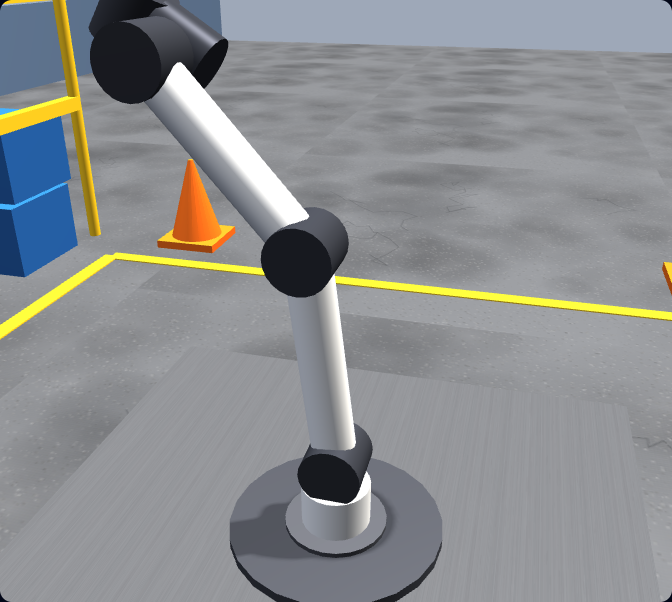
In the simulator you write this, the arm solves the inverse kinematics for each pose, and you watch it run under physics — the safest way to test a program before it ever reaches hardware.
URScript guides
Go deeper with the full articles
These deep-dive guides cover the theory behind each part of the syllabus. Read them alongside your practice.
- What is URScript? — a complete introduction to UR’s programming language: syntax, where it runs, and how it relates to PolyScope.
- URScript: movej vs movel — joint moves vs linear moves explained, with examples and the rule for choosing each one.
- How to program a Universal Robot — a step-by-step walkthrough for beginners, from first jog to a working pick-and-place.
Why practise in a simulator
Learn the real language, with no robot and no risk
vs a real UR arm
A UR arm costs tens of thousands and one bad move can damage tooling. The simulator lets you fail safely and repeat a task endlessly — the only way to actually build skill — at zero cost and zero risk.
vs URSim
UR’s official URSim is the real controller software but ships as a Linux virtual machine that beginners find heavy to install. Ours opens in a browser tab on any computer, with lessons that teach URScript from zero.
Real URScript
You write the same movej, movel, set_digital_out, set_tcp and set_payload you would type into a real UR — so the language and habits transfer straight onto PolyScope and a physical controller.
Keep learning
More on robot programming
- Robot programming course — the full graded curriculum from first jog to a certified capstone.
- Universal Robots programming — PolyScope and URScript, the two ways to program a UR, explained.
- Universal Robots simulator — write URScript on a simulated UR arm with live physics.
- Robot arm simulator — the six-axis arm, kinematics, and work cell explained.
- Robot simulator — the overview of the browser-based robotics product.